How to Raise, View and Reopen Tickets in Help Desk
Overview
The Help Desk module in Quikchex allows employees to raise support tickets and enables admins to manage, assign, and resolve them efficiently. This helps streamline support processes and ensures timely issue resolution
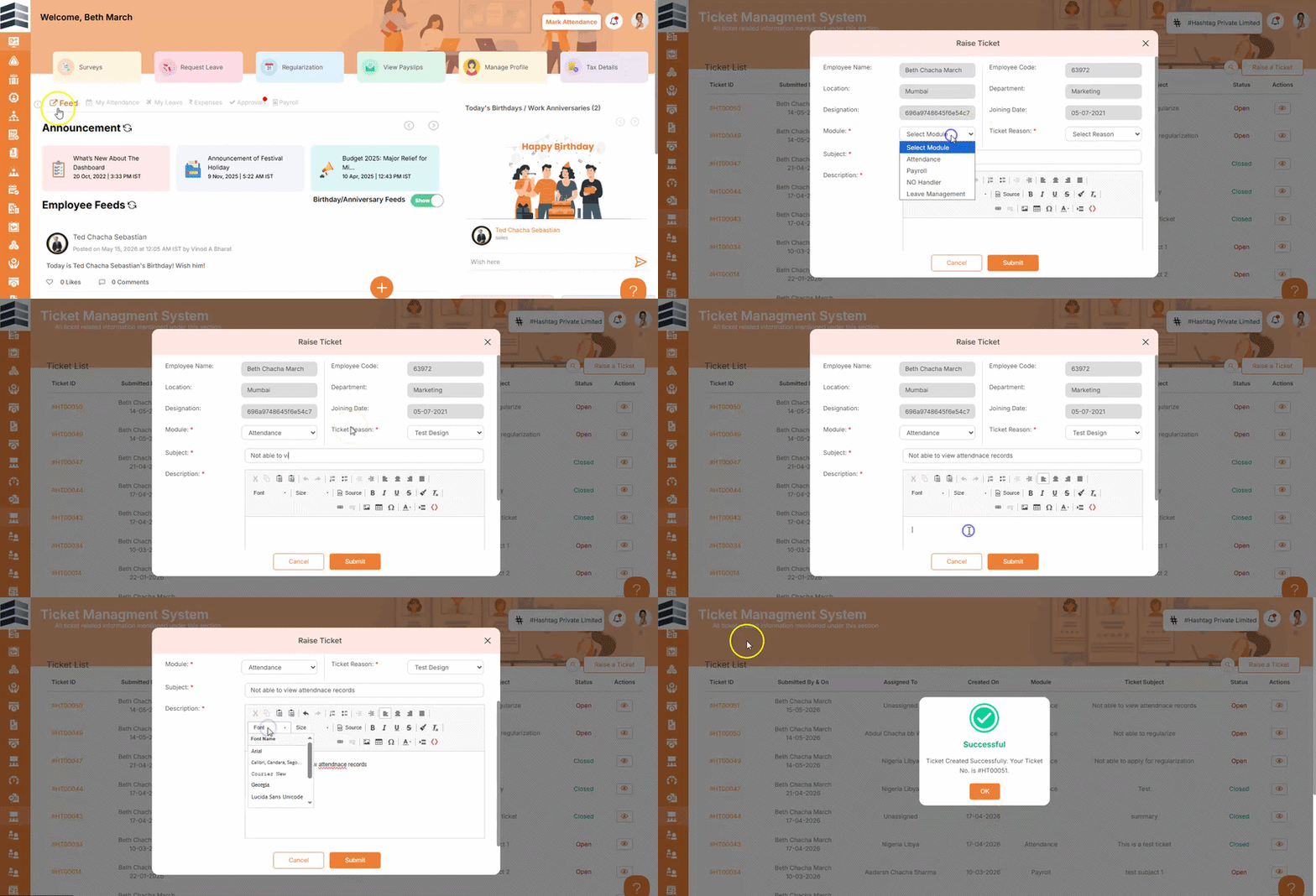
To Raise a Ticket:
- Go to the Help Desk module.
- On the right side, click Raise a Ticket.
- Select the relevant module.
- Choose the appropriate ticket reason for that module.
- Enter the subject of the ticket.
- In the description section, clearly explain the issue and the reason for raising the ticket.
- If required, you can:
- Attach supporting documents or screenshots
- Add links
- Adjust font size and formatting options
- Once all details are filled in, click Submit to raise the ticket.
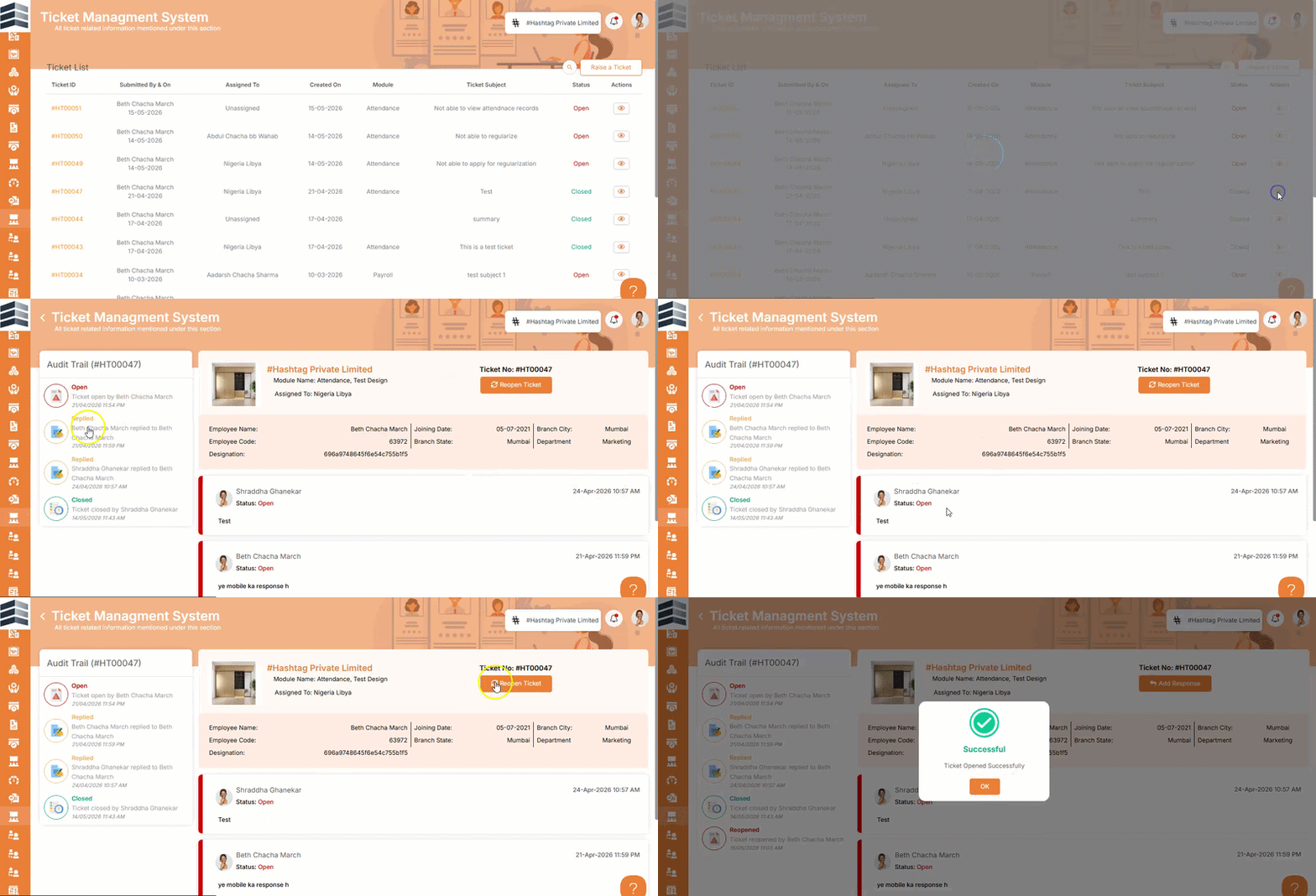
To View and reopen the Existing Tickets:
- Navigate to the Help Desk module from the main menu.
- Open the Ticket List section, where all submitted tickets are displayed.
- In the ticket list, you can view important details such as:
- Ticket ID
- Submitted By
- Submission Date
- Assigned To
- Subject
- Current Status
- Identify the ticket you wish to review and click on the Eye icon next to it.
- You will then be able to view the complete ticket history, including:
- Full response trail
- Status updates
- Related dates and timestamps
- You can also reopen the same ticket.