
Recovery Assets Request
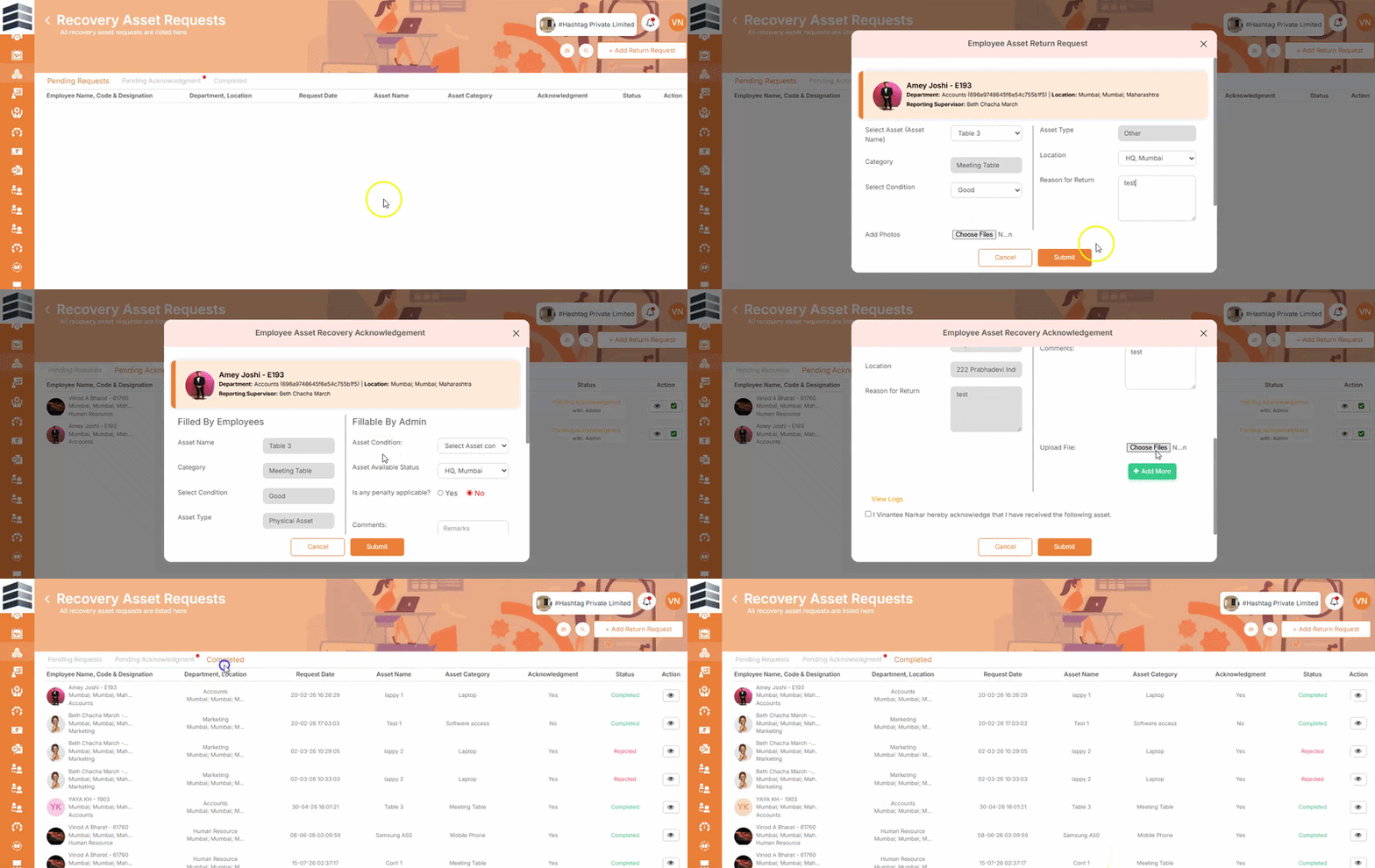
The Recovery Assets Request module allows administrators to:
- Submit an asset recovery request on behalf of an employee.
- View and manage all asset recovery requests submitted by employees.
- Acknowledge recovery requests and move them to completed status.
Step 1: Add a Return Request
- Navigate to the Recovery Assets Request module.
- Click Add Return Request.
- Select the Employee Name for whom you want to submit the recovery request.
- Select the Asset Name that needs to be returned.
Step 2: Verify Asset Details
- Once the asset is selected, the system will automatically display the Asset Type and Asset Category assigned to the selected employee.
- Verify that the displayed asset details are correct.
Step 3: Enter Return Details
- Select the Location where the asset is being returned.
- Select the Asset Condition:
- New
- Good
- Fair
- Poor
- Enter the Reason for Return in the designated field.
- Add/upload a photo of the asset as required.
Step 4: Submit the Recovery Request
- Review all the entered details.
- Click Submit to submit the recovery request.
- After submission, the request will be displayed under Pending Acknowledgement.
Step 5: Acknowledge the Request
- Go to the Pending Acknowledgement section.
- Locate the recovery request that needs to be acknowledged.
- Under the Action column, click Acknowledge Request.
- Enter your remarks related to the asset recovery.
- Click Submit to acknowledge the request.
Step 6: View Completed Requests
- Once the request has been successfully acknowledged and submitted, it will be moved to Completed Requests.
- The completed request can then be viewed in the Completed Requests section.