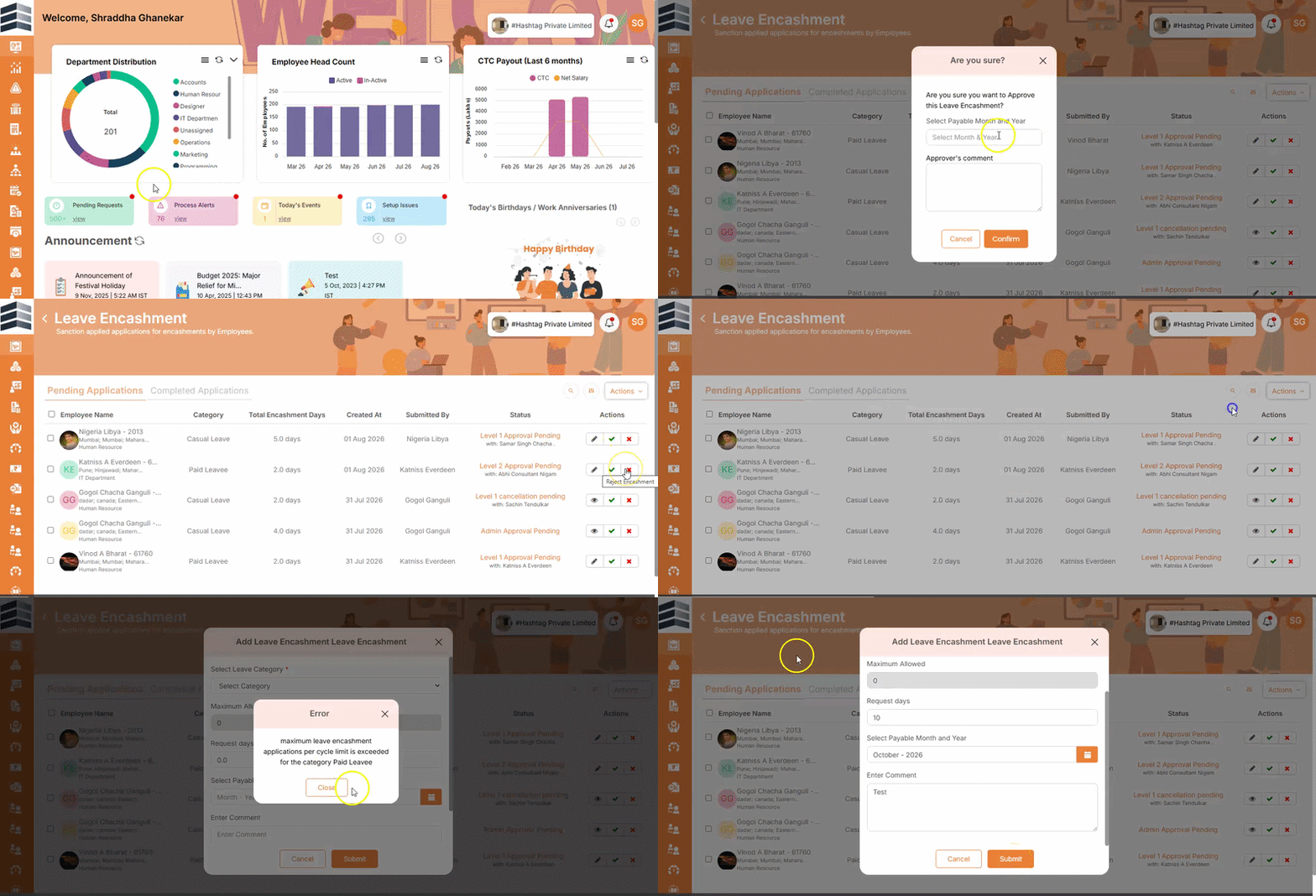
How to View, Take Action and Apply Leave Encashment Applications
Overview
The Leave Encashment section in Quikchex allows administrators to manage employee Leave Encashment applications. Administrators can view pending and completed applications, approve or reject individual applications, process multiple applications in bulk, and create a Leave Encashment application on behalf of an employee.
1. View Leave Encashment Applications
To view Leave Encashment applications:
- Go to Leave.
- Navigate to Leave Encashment.
- Click on Leave Encashment.
- The Pending Applications will be displayed on the first page.
- Navigate to the next page to view Completed Applications.
2. Take Action on an Individual Application
Administrators can take the following actions on an individual Leave Encashment application:
- Edit the application
- Approve the application
- Reject the application
Steps:
- Go to Leave → Leave Encashment.
- Locate the required application.
- Click the Action option against the application.
- Select the required action.
3. Approve or Reject Applications in Bulk
Administrators can approve or reject multiple Leave Encashment applications at the same time.
Steps:
- Go to Leave → Leave Encashment.
- Select the required applications.
- Click Action.
- Choose the required option:
- Approve multiple requests
- Reject multiple requests
4. Add a Leave Encashment Application on Behalf of an Employee
Administrators can create a Leave Encashment application on behalf of an employee when required.
Steps:
- Go to Leave → Leave Encashment.
- Click Action.
- Select Add Single Leave Encashment Application.
- Search for and select the required Employee.
- Select the applicable Leave Category.
- Enter the Number of Days to be encashed.
- Select the Month for which the Leave Encashment is being applied.
- Click Submit.
The Leave Encashment application will be created for the selected employee and will be available in the Leave Encashment section for further processing.